How to Remove NotebookLM Watermark
A complete step-by-step guide to instantly strip watermark logos and ending screens from your NotebookLM exported videos, PDF slides, PPTX presentations, and Infographics. 100% local, free, and private.
اسحب وأفلت الفيديو هنا
يدعم .mp4 من NotebookLM (الحد الأقصى 100 ميجابايت)
Step-by-Step Guide to Removing NotebookLM Watermarks
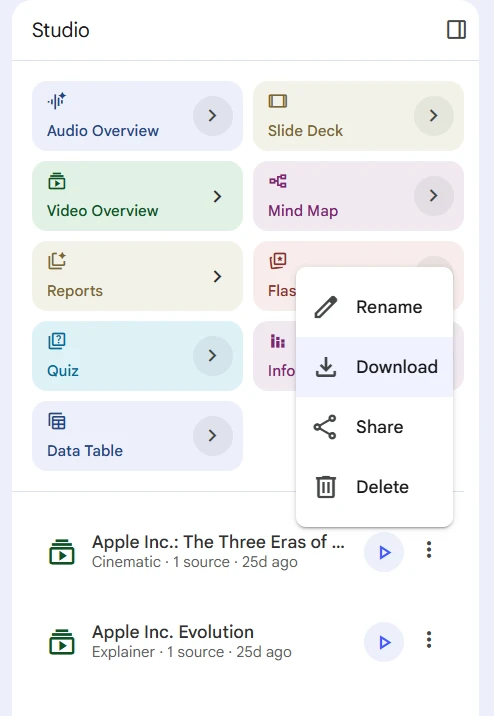
Step 1: Export Your Original File from NotebookLM
In your NotebookLM workspace, open the project you want to clean. Click the 'Export' button in the top right corner and export it as a PDF document, Google Slides (which you can download as .pptx), or generate the Audio Overview podcast and save it as an .mp4 video.
Step 2: Upload the File to Our Interactive Widget
Use the tabs at the top of this page to select the file type you have (Video, PDF, PPTX, or Infographic). Drag and drop your exported file into the safe dashed upload area, or click to choose files manually from your device.
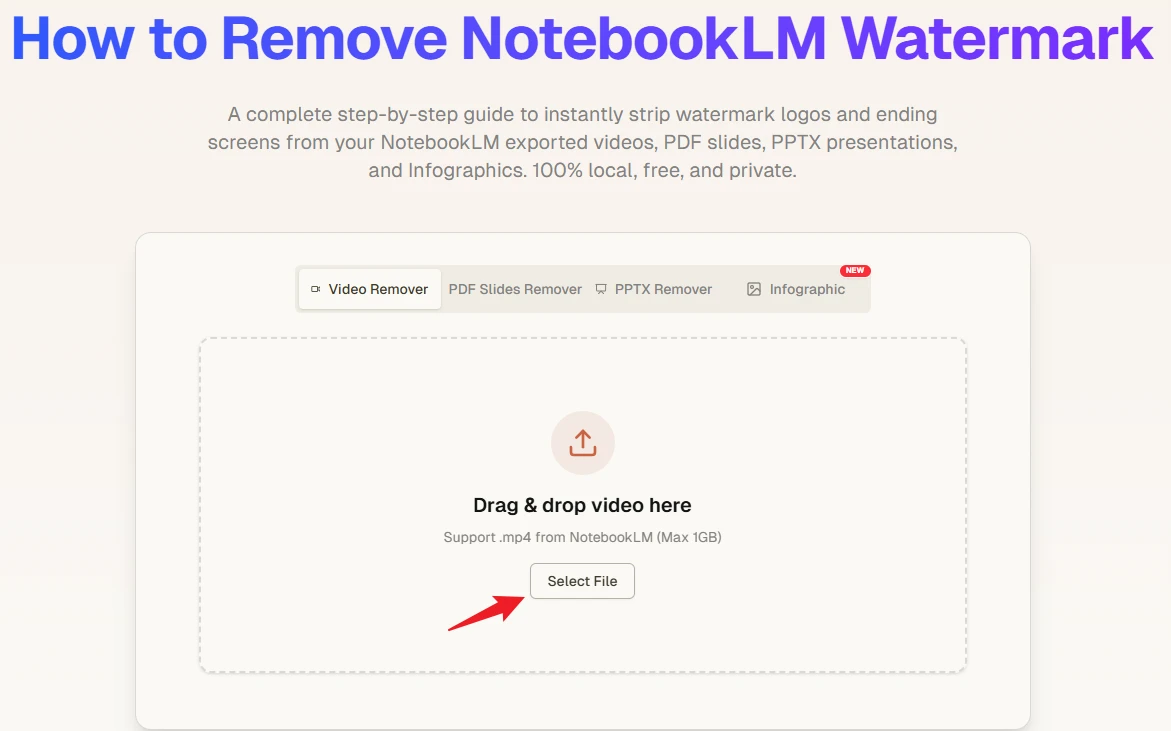
Step 3: Strip Watermarks & Download Instantly
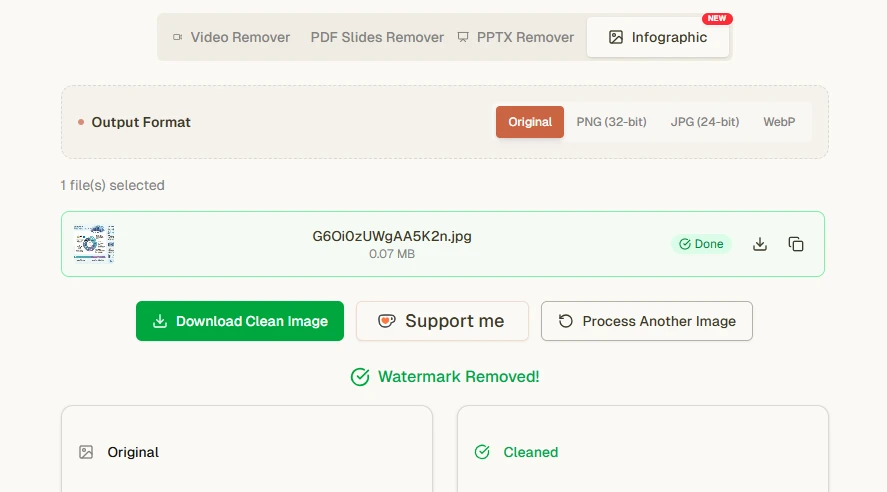
Click the 'Remove Watermark' button. Our tool runs locally in your browser via WebAssembly and Canvas mathematics to reverse the alpha blending process. Within seconds, your watermark is deleted losslessly. Click the download button to grab your clean, professional document!
Featured Video Tutorials
Watch these step-by-step video walkthroughs to see how to remove watermarks and ending screens from your NotebookLM projects in action.
Quick Walkthrough: Remove NotebookLM Watermark & Outro
Learn how to instantly strip Google NotebookLM watermark logo overlays and ending screens in under a minute.